How to Check On-Page SEO Without Leaving the Current Page
A quick SEO check should not require opening five tabs.
When you are reviewing a page, the first questions are usually simple:
- Does the page have a useful title?
- Is there a meta description?
- Is the main H1 present?
- Does the page have a canonical URL?
- Is
noindexaccidentally enabled? - Which links are internal, external, nofollow, sponsored, or UGC?
These checks do not replace a full technical SEO audit. But they are useful because they help you decide whether a page needs deeper investigation before you open a crawler, Search Console, PageSpeed Insights, or your CMS.
This guide shows a practical way to perform that first-pass review directly from the page you are already viewing.
1. Start With the Page Title
The HTML <title> element is one of the clearest signals a page provides about its topic.
Google may use the title element, visible headings, og:title, and other prominent text when generating the title link shown in search results.
A quick review should answer:
- Is a title present?
- Is it specific to this page?
- Does it describe the page accurately?
- Is the important information near the beginning?
- Is it stuffed with repeated keywords or boilerplate?
Avoid treating a particular character count as a hard rule. Google does not define a fixed maximum length for the HTML title element. Search-result titles can be shortened depending on the device and the result layout.
A 61-character title is not automatically bad. A 35-character title is not automatically good.
The useful question is whether the title is descriptive, concise, and helpful to the person deciding whether to click.
Official reference: https://developers.google.com/search/docs/appearance/title-link
2. Check the Meta Description
The meta description is another useful page-level signal to inspect.
A missing description is worth reviewing, but it is important to understand what Google actually does with it.
Google often creates snippets from the visible content on the page. It may use your meta description when it believes that description is a better summary for the searcher’s query.
That means the goal is not simply to fill the field.
A good description should:
- summarize the specific page;
- distinguish it from other pages on the site;
- avoid disconnected keyword lists;
- explain what the searcher will find after clicking.
As with title tags, there is no fixed Google rule saying that every description must fall within one exact character range. Character counts are better treated as review signals than pass/fail rules.
Official reference: https://developers.google.com/search/docs/appearance/snippet
3. Confirm the Main H1
The H1 is useful for page structure and readability.
For most editorial, product, and landing pages, the primary visible heading should make the page topic obvious immediately.
Check:
- Is there an H1?
- Does it describe the page?
- Is it visible to users?
- Does it match the intent of the page rather than simply repeating keywords?
Do not add a hidden H1 just to satisfy an SEO checker. The heading hierarchy should make sense to real readers first.
Multiple H1 elements are not automatically an SEO disaster, but a clear main heading is still a sensible default for most content pages.
4. Review the Canonical URL
A canonical tag helps indicate the preferred URL when the same or very similar content can be reached through multiple URLs.
For example, a page might be accessible as:
/product/
/product/?utm_source=newsletter
/product/?ref=partner
The canonical can help indicate which version should be treated as the primary page.
When checking a canonical, ask:
- Is one present?
- Does it point to the correct preferred URL?
- Is it self-referencing where appropriate?
- Does it accidentally point to another page?
- Are there duplicate or parameter-based URLs that make canonicalization important?
A missing canonical is not automatically an error. Google can choose canonical URLs without a rel="canonical" tag. The tag becomes more useful when duplicate or near-duplicate URL versions exist.
Official reference: https://developers.google.com/search/docs/crawling-indexing/consolidate-duplicate-urls
5. Look for Robots Directives
A page can look completely normal in a browser and still contain:
<meta name="robots" content="noindex">
That is why robots directives belong near the top of any quick SEO check.
If noindex appears on a page that should be searchable, investigate immediately.
But do not assume every noindex is a mistake.
It may be intentional on:
- account pages;
- internal search pages;
- staging pages;
- utility pages;
- campaign pages that should not appear in search.
The correct question is simply:
Should this URL appear in Google?
If yes, an unexpected noindex deserves attention.
Official reference: https://developers.google.com/search/docs/crawling-indexing/robots-meta-tag
6. Inspect Links Without Reading the HTML Manually
Links deserve a quick review too.
Useful page-level counts include:
- internal links;
- external links;
- follow links;
- nofollow links;
- sponsored links;
- UGC links.
This is particularly helpful when reviewing guest posts, affiliate content, comments, editorial articles, or pages generated by a CMS.
An external link is not the same thing as a nofollow link.
For example:
<a href="https://example.com/">Normal external link</a>
is a regular external link.
While:
<a href="https://example.com/" rel="nofollow">External nofollow link</a>
is both external and nofollow.
Those are two different properties of the same link.
We cover these attributes in more detail in our guide to nofollow, sponsored, UGC, and external links.
7. Check the Technology Behind the Page
A fast page review can also reveal useful context about the site itself.
You may want to know whether the page appears to use:
- WordPress;
- WooCommerce;
- Shopify;
- Webflow;
- Google Analytics 4.
Knowing the stack helps you choose the right next step.
A WordPress page may require a plugin or theme check. A WooCommerce page may need ecommerce-specific testing. A site using GA4 may need analytics validation rather than an SEO change.
Technology detection should still be treated as evidence-based rather than guaranteed. Sites can hide, rename, bundle, proxy, or cache public assets.
A Faster Workflow With WiseTech SEO Toolbox
If you perform these checks frequently, manually opening page source and browser developer tools becomes repetitive.
WiseTech SEO Toolbox is a free Chrome extension designed for this first-pass workflow.
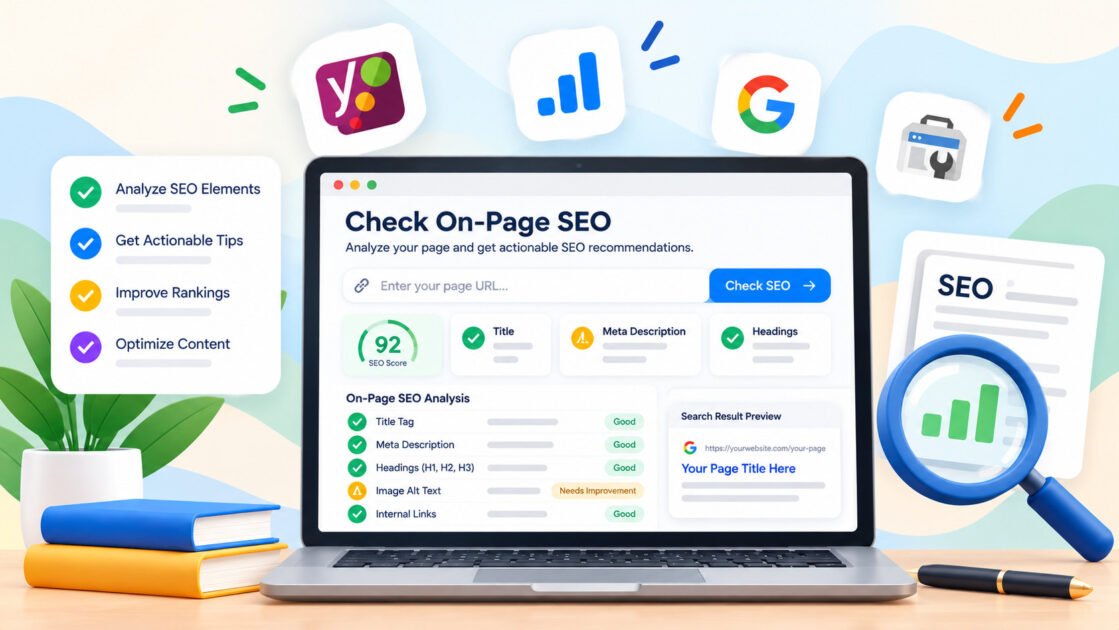
Open a page, click the extension, and it can review the current page for:
- title;
- meta description;
- H1;
- canonical;
- robots meta directive;
- internal and external links;
- follow, nofollow, sponsored, and UGC links;
- WordPress and public plugin traces;
- WooCommerce;
- Shopify;
- Webflow;
- Google Analytics 4.
It also includes link highlighting so you can see different link relationships directly on the page instead of matching URLs manually.
Install it from the Chrome Web Store:
https://chrome.google.com/webstore/detail/dddiodckkkjbhionohagkaamfkgacloa
Do Not Turn Every Warning Into a Problem
A lightweight checker is most useful when it helps you decide what deserves attention.
It becomes less useful when every condition is presented as a critical SEO failure.
For example:
- A missing title is usually worth fixing.
- An accidental
noindexmay be urgent. - A 61-character title may be perfectly fine.
- A missing canonical may be acceptable on a unique URL.
- A nofollow link may be completely intentional.
This is why WiseTech SEO Toolbox uses contextual recommendations instead of a single SEO score.
If you see a warning and want to understand why it appeared, use the WiseTech Toolbox Recommended Next Steps guide. It explains each condition and links to the relevant primary documentation.
When You Need a Bigger SEO Tool
A browser extension is not a replacement for everything else.
Use a crawler when you need to analyze hundreds or thousands of URLs.
Use Google Search Console when you need:
- indexing status;
- search queries;
- clicks and impressions;
- canonical information from Google’s perspective;
- search performance trends.
Use PageSpeed Insights or Lighthouse when you need deeper performance analysis.
Use server logs when you need to understand actual crawler requests.
And use your CMS or hosting environment when a problem is generated server-side.
The browser-level check is simply the fastest place to start.
A Simple On-Page SEO Checklist
When you open a page, review these in order:
- Page title
- Meta description
- H1
- Robots directive
- Canonical URL
- Internal and external links
- Nofollow, sponsored, and UGC attributes
- Website technology
- PageSpeed or structured data if relevant
If everything looks normal, move on.
If something looks unusual, investigate that specific issue with the right specialist tool.
Final Thoughts
Good SEO workflows do not have to begin with a giant audit.
Often the fastest approach is to inspect the page you are already viewing, identify obvious issues, and only then decide whether deeper analysis is necessary.
A quick on-page review can catch missing titles, accidental noindex directives, broken content hierarchy, unexpected link attributes, and CMS clues in less time than it takes to open several separate tools.
That is exactly the role of WiseTech SEO Toolbox: not to replace your SEO stack, but to help you decide what to check next.