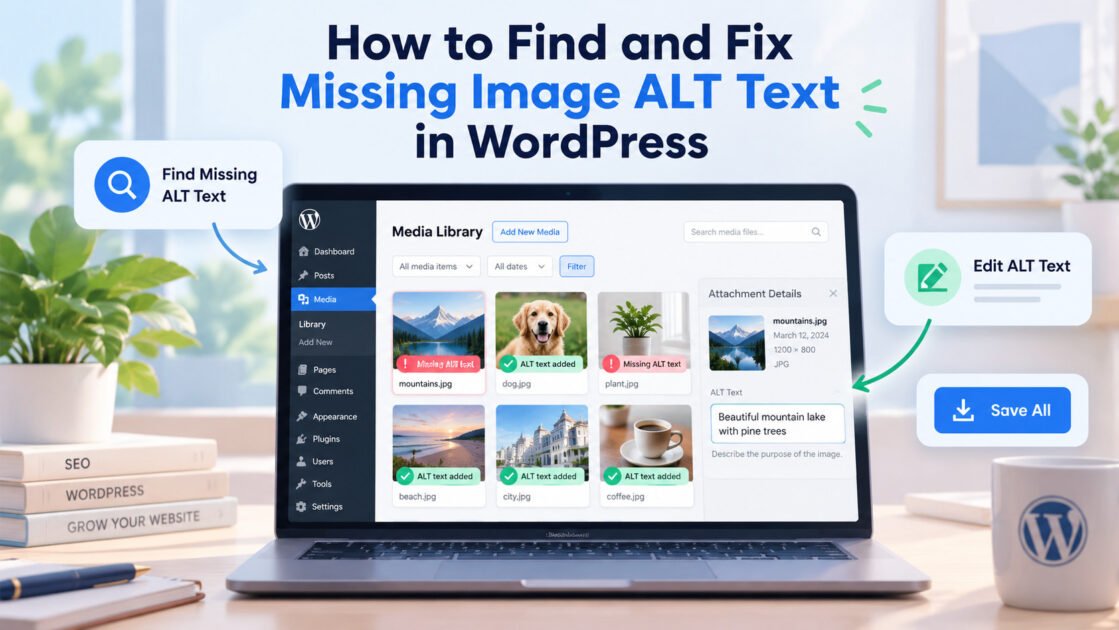
How to Find and Fix Missing Image ALT Text in WordPress
Missing image ALT text is easy to overlook when managing a WordPress website. You upload an image, add it to a post, publish your content, and move on. But when your site contains dozens or hundreds of images, checking every description manually becomes a repetitive task.
In this tutorial, you’ll learn how to find missing ALT text in WordPress, write useful image descriptions, and review images across the Media Library, posts, pages, and featured images using a free WordPress plugin.
We’ll use WTL – Missing Image ALT Checker, a lightweight, open-source plugin developed by WiseTechList.
In this guide
- What is image ALT text?
- Method 1: Check manually
- Method 2: Use a free plugin
- Step 1: Install the plugin
- Step 2: Open the dashboard
- Step 3: Find missing ALT
- Step 4: Bulk-save descriptions
- Step 5: Scan content
- Step 6: Review issues
- Media Library vs Gutenberg ALT
- Write better ALT text
- What the scanner does not cover
- Frequently asked questions
What Is Image ALT Text, and Why Does It Matter?
Alternative text, commonly called ALT text, is a description associated with an image in HTML. For example:
<img src="seo-dashboard.jpg" alt="Website SEO dashboard showing organic traffic trends">ALT text primarily helps people using screen readers understand meaningful images. It also gives search engines additional context about image content. Good ALT text describes an image’s purpose in the context of the page, rather than repeating keywords.
| Image | Poor ALT text | Better ALT text |
|---|---|---|
| SEO dashboard screenshot | SEO image | Google Search Console performance chart showing organic clicks |
| Team working together | Business team | Three marketing team members reviewing campaign results |
| WordPress settings screenshot | WordPress | WordPress Media Library showing the Alternative Text field |
alt=""). The goal is meaningful accessibility, not filling every blank field.Method 1: Check ALT Text Manually in WordPress
WordPress already provides a way to edit ALT text without another plugin. Log in, open Media → Library, select an image, locate Alternative Text, enter an appropriate description, and save when required.
This works well for a few images. But examining a larger collection one by one takes time, and Media Library changes may not update ALT already stored in published posts.
Method 2: Find Missing ALT Text Using a Free WordPress Plugin
WTL – Missing Image ALT Checker helps identify image ALT issues from a central dashboard. Unlike automatic ALT generators, it doesn’t invent descriptions with AI. You decide what meaningful text belongs with each image.
The plugin includes Media Library ALT coverage statistics, search and filtering, individual editing and bulk saving, batch scans of stored content and featured-image ALT, issue previews, and targeted correction of supported classic HTML content. It doesn’t require AI credits, a paid API, or an external account.
Step 1: Install WTL – Missing Image ALT Checker
- Open your WordPress dashboard and go to Plugins → Add New Plugin.
- Search for WTL – Missing Image ALT Checker.
- Click Install Now and then Activate.
You can also find it on the official WordPress.org plugin page.
Step 2: Open the ALT Checker Dashboard
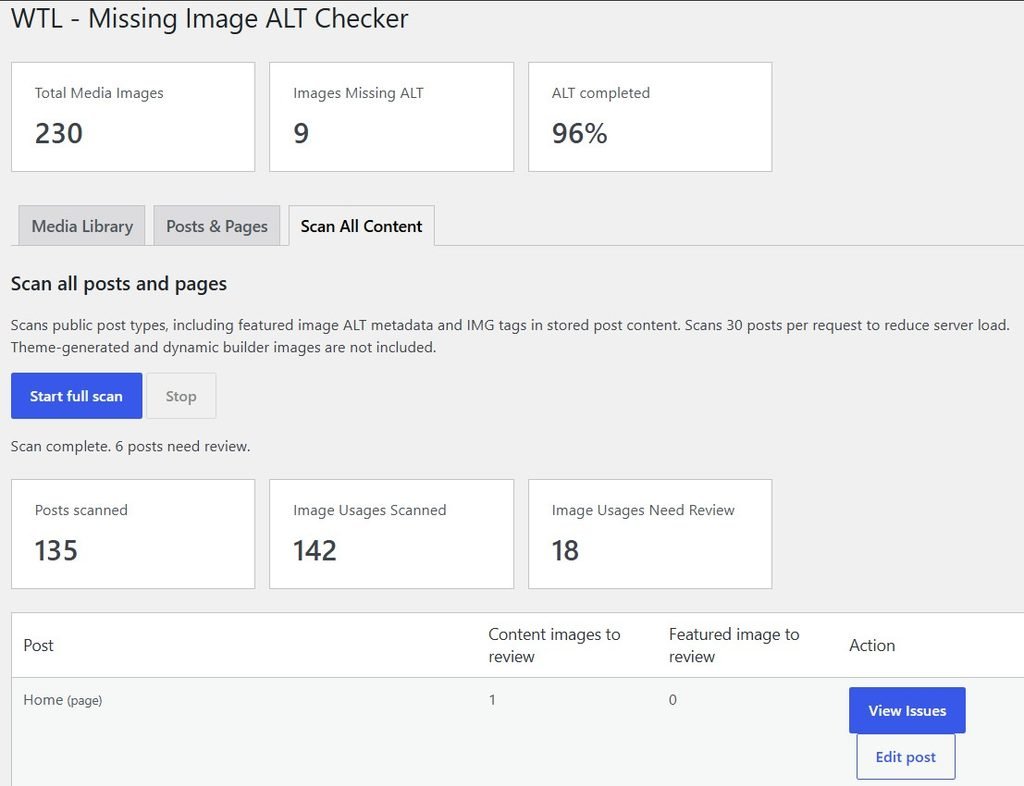
After activation, go to Media → ALT Checker. The dashboard shows Total Media Images, Images Missing ALT, and ALT Completed.
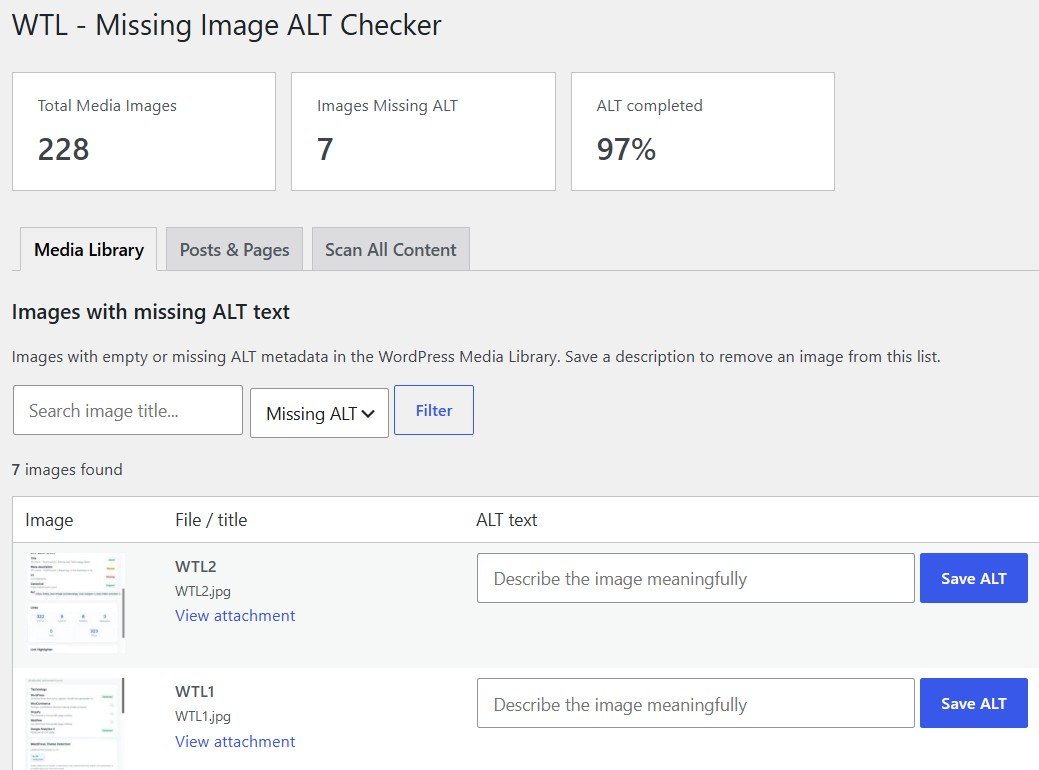
These statistics help estimate the amount of review needed; they are not an accessibility compliance score.
Step 3: Find Images with Missing ALT Text
Open the plugin’s Media Library tab. Review the thumbnail and filename, decide whether the image conveys meaning, type a useful description, and click Save ALT.
For example, an image showing a Google Analytics chart could use: “Google Analytics 4 report showing website traffic over the past 30 days.” Avoid keyword stuffing such as “SEO SEO tools best SEO software.”
Step 4: Save Multiple ALT Descriptions at Once
Fill in multiple ALT fields on the current results page, then select Save all filled ALT fields on this page. The plugin saves those descriptions together.
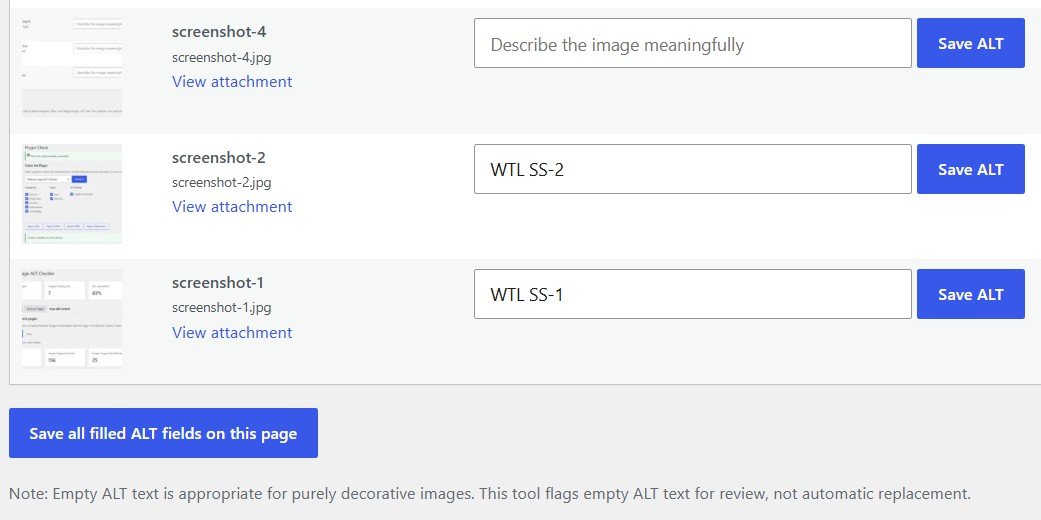
Bulk editing saves clicks, but each description still needs to match its own image and context.
Review missing ALT text in less time
Scan your WordPress image library, write meaningful descriptions, and bulk-save filled ALT fields. Free and open source.
Get WTL ALT Checker on WordPress.org ↗Step 5: Scan Posts, Pages, and Featured Images
Media Library metadata tells only part of the story. Open Scan All Content and click Start full scan to review image usages in stored content and featured-image metadata. The plugin scans public post types in batches instead of one large request.
The results include Posts Scanned, Image Usages Scanned, and Image Usages Need Review.
Why Can Image Usages Exceed Media Library Images?
The same image can appear in several places. One logo in the Media Library may be used in five posts; the library counts one file, while the content scan can count five usages. The two figures measure different things.
Step 6: Use View Issues to Inspect Problem Images
Click View Issues next to a post flagged for review. You can see reported image occurrences and, where supported, thumbnails and links to the affected post editor. Media Library ALT metadata can be edited from the review interface.
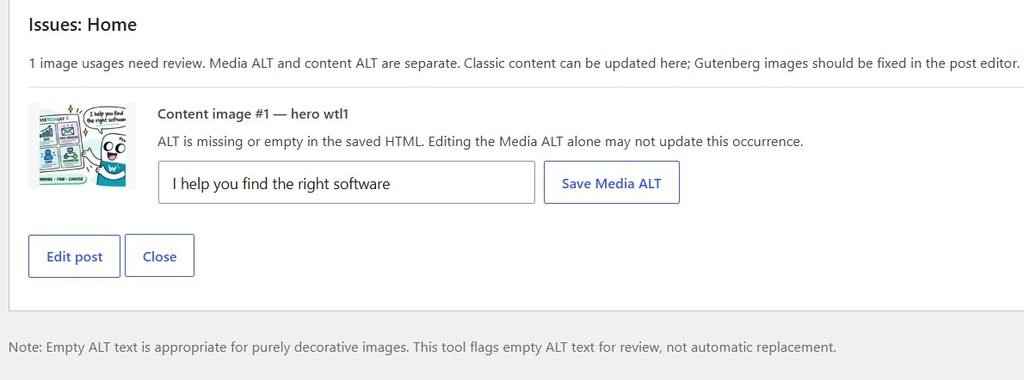
For supported classic post HTML, targeted ALT changes can be confirmed before saving. For Gutenberg images, open the post editor and change the image block safely.
Why Changing Media Library ALT May Not Fix Existing Posts
WordPress may store an image’s ALT attribute directly in saved post content. Changing attachment metadata in the Media Library doesn’t necessarily rewrite existing Gutenberg blocks.
<img src="marketing-report.jpg" alt="">If an old post still contains an empty ALT attribute, find it through Scan All Content → View Issues → Edit Post, locate the relevant Gutenberg image block, update its Alternative Text field, and save the post. This avoids invalidating block markup.
How to Write Better ALT Text for SEO and Accessibility
Describe the image’s actual purpose
Explain what the image contributes to the page. For screenshots, describe what they demonstrate, not just that they are screenshots.
Keep descriptions concise
A short, clear description is usually more useful than a list of every visual detail.
Avoid keyword stuffing
Use natural language that helps someone understand the image. Don’t repeat SEO keywords just to fill the ALT field.
Treat decorative images differently
If an image adds no meaningful information, an empty alt="" may be correct.
Review images in context
The same photo can require different descriptions when used in different articles. The surrounding content determines its purpose.
What WTL – Missing Image ALT Checker Does Not Scan
WTL focuses on Media Library metadata, stored content image tags, and featured-image ALT metadata. It does not inspect every dynamically rendered page-builder image, theme-generated image, or CSS background. Scan results aren’t retained after a page reload.
Treat its output as a review workflow, not a guarantee that every image on your live website has been audited.
Frequently Asked Questions
How do I find images without ALT text in WordPress?
Check individual attachments through Media → Library, or use WTL to locate missing ALT metadata and review usages in stored content.
Can I add ALT text to multiple WordPress images?
Yes. WTL lets you fill several ALT fields on the current results page and save them together.
Does the plugin generate ALT text automatically?
No. It is a manual-first auditing tool. You choose meaningful descriptions yourself.
Can I check featured images?
Yes. The full-content scan reviews featured-image ALT metadata.
Does adding ALT text guarantee better SEO rankings?
No. Useful ALT text improves image context and accessibility, but it doesn’t guarantee higher search rankings.
Is WTL – Missing Image ALT Checker free?
Yes. It’s free, open source, and doesn’t require an AI subscription or a paid external API.
Final Thoughts
Missing ALT text is a common WordPress maintenance problem, especially when a site has accumulated many posts and images. The practical workflow is to find missing descriptions, review the image, write meaningful ALT text, and verify the actual content.
Try WTL – Missing Image ALT Checker
Audit Media Library ALT metadata, scan saved content, and review issues in one WordPress dashboard.
Download Free Plugin ↗For screenshots, installation guidance, and additional details, see the WTL – Missing Image ALT Checker product page. Developed by WiseTechList.