How to Detect WordPress Themes and Plugins Used by a Website
Sometimes you land on a WordPress site and immediately wonder:
What theme is this using?
Or:
Which plugin created that form, ecommerce feature, SEO markup, or layout?
It is often possible to identify at least part of a WordPress stack from information already visible in the browser.
But there is an important limitation:
A public website cannot reliably reveal every installed WordPress theme or plugin.
Good detection is therefore about collecting evidence, not pretending that every hidden component can be identified with certainty.
This guide explains what you can detect, what you cannot, and the fastest ways to investigate a WordPress site.
First Confirm That the Site Uses WordPress
Before looking for themes or plugins, confirm the CMS.
Common public WordPress signals include references to paths such as:
/wp-content/
/wp-includes/
/wp-json/
You may also see WordPress-specific API links or generator information in the page source.
However, one isolated string is not always enough.
A page might load an image from another WordPress site, embed third-party content, or contain text mentioning a WordPress path.
That is why a good detector should prefer first-party evidence from the current website rather than matching one word anywhere in the HTML.
How WordPress Theme Detection Works
WordPress themes usually live in:
/wp-content/themes/
If a page loads a stylesheet from:
https://example.com/wp-content/themes/kadence/style.css
then kadence is a strong public clue that the site is using, or at least loading assets from, the Kadence theme.
The same idea applies to other themes:
/wp-content/themes/astra/
/wp-content/themes/generatepress/
/wp-content/themes/blocksy/
Why theme detection is not always exact
There are several reasons the theme you see in public assets may not tell the full story.
Child themes
A site may use a child theme while still loading assets from the parent theme.
For example:
/wp-content/themes/my-custom-child/
/wp-content/themes/kadence/
Both can be present on the same page.
The child theme may be the active theme while Kadence is the parent.
CDN and asset rewriting
Caching or CDN services can rewrite asset URLs so the original theme directory is no longer visible.
Bundled CSS and JavaScript
Optimization plugins may combine several files into one generated asset.
That can remove the original theme path from public markup.
Custom themes
A custom theme may have a folder name that gives you very little useful information.
For example:
/wp-content/themes/site-v2/
does not tell you whether the theme was built from scratch or based on another framework.
How Plugin Detection Works
Plugins normally live under:
/wp-content/plugins/
If the page loads:
/wp-content/plugins/contact-form-7/
that is strong evidence that Contact Form 7 has a front-end asset on the current page.
Likewise:
/wp-content/plugins/woocommerce/
can be evidence of WooCommerce.
This approach works particularly well for plugins that load public CSS or JavaScript.
Why Most Plugin Detectors Miss Plugins
Suppose a site owner tells you they have 20 plugins installed, but a public detector finds only five.
That does not necessarily mean the detector is broken.
Many plugins leave no visible front-end trace on the page you are viewing.
Examples include plugins that:
- operate only in WordPress Admin;
- perform database or server-side tasks;
- run scheduled jobs;
- add functionality only to another page type;
- load assets only when a shortcode or block is present;
- have their files combined by a cache or optimization plugin;
- hide or rewrite asset URLs.
That is why a public plugin scan should be described as:
visible plugin traces
not:
every plugin installed on this website.
WordPress itself manages installed plugins from the Plugins screen in the admin dashboard, where active and inactive plugins can be viewed directly.
Official reference: https://wordpress.org/documentation/article/manage-plugins/
The Most Accurate Method for a Website You Own
If you control the WordPress site, do not rely on public detection.
Use the WordPress dashboard.
For plugins, go to:
WordPress Admin → Plugins → Installed Plugins
That screen is the authoritative inventory of normal installed plugins, including whether they are active or inactive.
WordPress also supports must-use plugins, commonly called MU plugins, which can live in a separate wp-content/mu-plugins directory and do not behave like normal plugins in the standard list.
For themes, go to:
WordPress Admin → Appearance → Themes
WordPress identifies the active theme there and shows the other installed themes.
Official theme reference: https://wordpress.org/documentation/article/appearance-themes-screen/
A Fast Way to Check Public WordPress Plugin Traces
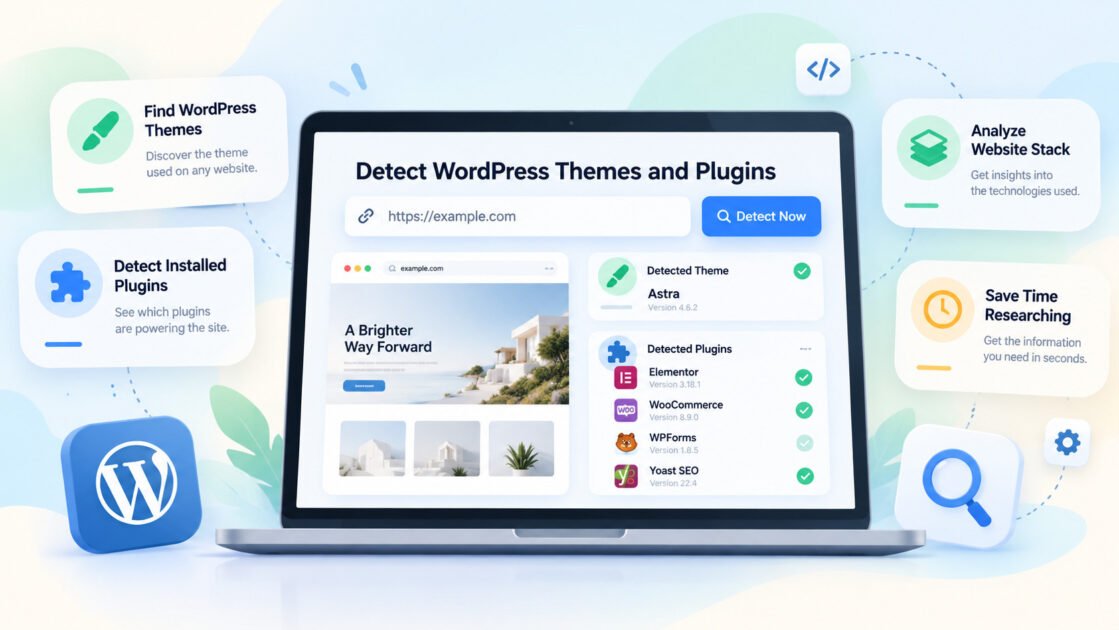
WiseTech SEO Toolbox includes a WordPress plugin detector for public pages.
It intentionally uses conservative public evidence rather than aggressively guessing plugin names.
On a public page, it can look for recognizable first-party plugin asset paths and other reliable traces.
If the website is yours, open:
WordPress Admin → Plugins → Installed Plugins
and run the extension there.
The extension can read that local admin table and show active and inactive plugins without sending the list to WiseTechList.
Install WiseTech SEO Toolbox from the Chrome Web Store:
https://chrome.google.com/webstore/detail/dddiodckkkjbhionohagkaamfkgacloa
What about theme detection?
The current public Chrome Web Store release focuses on WordPress detection and plugin traces. Theme detection is being tested for a future update, so do not rely on the public version yet for automated theme identification.
Until that update is released, use the manual theme-path checks in this guide or inspect the Appearance → Themes screen on sites you own.
Manual Method: Check Page Source
You can inspect the page source without any extension.
In Chrome:
Right click → View page source
Then search for:
wp-content/themes
or:
wp-content/plugins
You may find URLs such as:
/wp-content/themes/generatepress/assets/css/main.min.css
/wp-content/plugins/litespeed-cache/assets/css/example.css
The directory slug often gives you a useful clue.
Manual Method: Use Developer Tools
Chrome DevTools can be more useful than page source because some assets are injected after the page initially loads.
Open:
F12 → Network
Reload the page and filter by:
CSS
JS
Then look at request URLs containing:
/wp-content/themes/
/wp-content/plugins/
This is useful when a theme or plugin asset does not appear clearly in the initial HTML.
Do Not Confuse “Detected” With “Installed”
This is the most important rule.
A detected public trace tells you:
This page exposes evidence connected to this theme or plugin.
It does not always prove:
This is the exact current configuration of the entire website.
Examples:
- A plugin may be installed but not active on the current page.
- A plugin may be active but load no public asset.
- A removed plugin may leave cached assets temporarily.
- A parent theme and child theme may both appear.
- A CDN may obscure the original paths.
Use public detection to investigate, not as an absolute inventory.
Why This Matters for SEO and Website Research
Theme and plugin detection can be useful for several practical tasks.
Competitor research
You can see whether several competitors use similar CMS tools, ecommerce systems, caching solutions, or page builders.
Troubleshooting
If a site has a layout or performance problem, knowing the likely WordPress stack gives you a better place to start.
Client audits
Before requesting administrator access, public signals can help you understand the website architecture and prepare better questions.
Inspiration
If you find a useful form, navigation pattern, or ecommerce feature, knowing the likely tool behind it can help you research alternatives.
But avoid treating technology detection as proof that one plugin caused a site’s rankings, speed, design quality, or business results. The visible technology is only one part of the website.
A Practical Detection Checklist
When investigating a WordPress website:
- Confirm WordPress using first-party public evidence.
- Search for
/wp-content/themes/paths. - Check whether multiple theme paths suggest a child/parent relationship.
- Search for
/wp-content/plugins/paths. - Treat detected plugins as visible traces, not a complete inventory.
- Check Network requests if source HTML is inconclusive.
- If you own the site, verify everything in WordPress Admin.
- Be cautious when caching, CDNs, or bundled assets are present.
Final Thoughts
Detecting WordPress themes and plugins is easier than it looks, but accurate interpretation matters more than collecting a long list of names.
Public HTML and asset paths can provide strong clues. They cannot guarantee a complete inventory.
For websites you do not control, use theme and plugin traces as evidence.
For websites you own, WordPress Admin remains the better source of truth.
And if you need a fast first look at WordPress, plugin traces, SEO signals, technologies, and links on the page you are already viewing, WiseTech SEO Toolbox can reduce much of the repetitive checking.